
Put your loads on the Carrier Load Board
The Carrier Load Board at smartloads.io/loadboard lists your open loads for carriers you already work with. Turn it on in Admin → Board settings, choose whether rates show and which customers' loads appear, and see who signed up. Carriers sign in with a code from their email, save up to 5 lanes and click Request. Your team calls them back and books the load.
The Carrier Load Board is a load board for carriers at smartloads.io/loadboard. It lists open loads from every agency that turned it on, with the agency's name on each load. Carriers find a load, click Request, and someone on your team calls them to confirm. Nothing is booked until a person does.
Your own team uses the Load Board in the app. The Carrier Load Board is the carriers' view of your open loads.
The pictures below use example names and numbers.
Turn it on
You need to be an agency admin.
- In the left menu, under Admin, click Board settings.
- On the Carrier Load Board card, turn on the switch next to the title. Your open loads list on the board from then on.
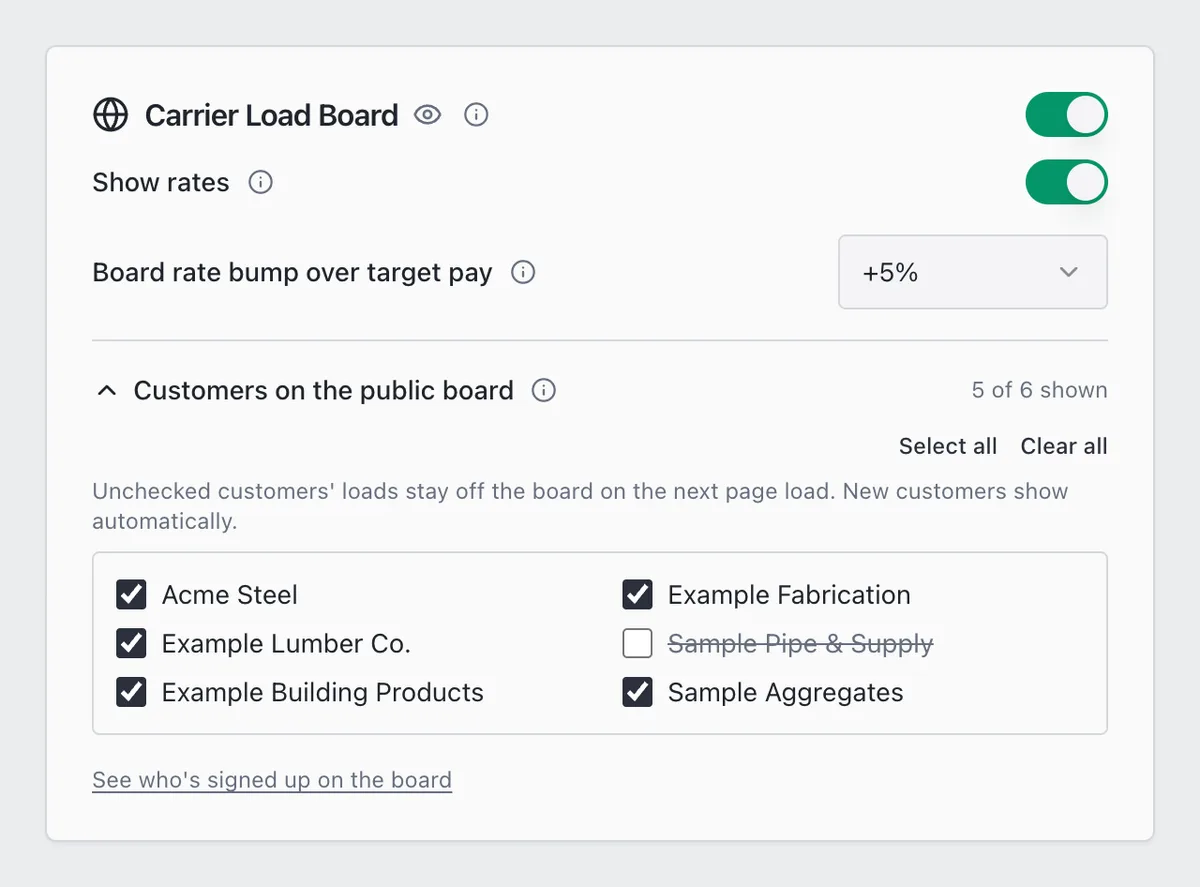
- To see the board the way carriers see it, click the eye next to Carrier Load Board. Anyone on your team can sign in there with their work email.
Turn the switch off and your loads leave the board.
Choose what carriers see
Every load shows the lane, pickup date, equipment, weight, miles and commodity, and says TWIC required when the load needs it. Carriers never see the customer's name, the invoice or max pay.
A load lists while it's open. It comes off when it's booked or covered, and while it's held for rate review or location review.
Rates. Turn on Show rates to show a rate. A load then shows its board rate only if its customer has Show rate on load boards turned on in the customer's profile (see Add a customer). Every other load says Call for rate.
Board rate bump over target pay. The board rate is target pay plus this bump, and never more than max pay. Pick None, +2.5%, +5%, +7.5% or +10%. The same rate goes to DAT and Truckstop for customers who show rates. DAT and Truckstop never get a per-ton rate.
Customers on the public board. Click it to open the list. Untick a customer to keep their loads off the board. New customers show until you untick them. Select all and Clear all change the whole list.
Let a carrier in
The board is for carriers you already work with. A carrier can sign in when their email is on file:
- They're in your Contacts under CRM. To add one, click Add Contact and enter their name and email. Type the carrier's company name. Don't pick one of your customers from the list, because a customer's contacts can't sign in.
- They're on your team.
If the email isn't on file, the board says so and asks them to call the dispatch number they normally use.
How carriers sign in
Send your carriers the link: smartloads.io/loadboard.
- They enter their email and click Email me a code. Ticking Keep me signed in for 30 days keeps them signed in. Otherwise the board signs them out when the browser closes.
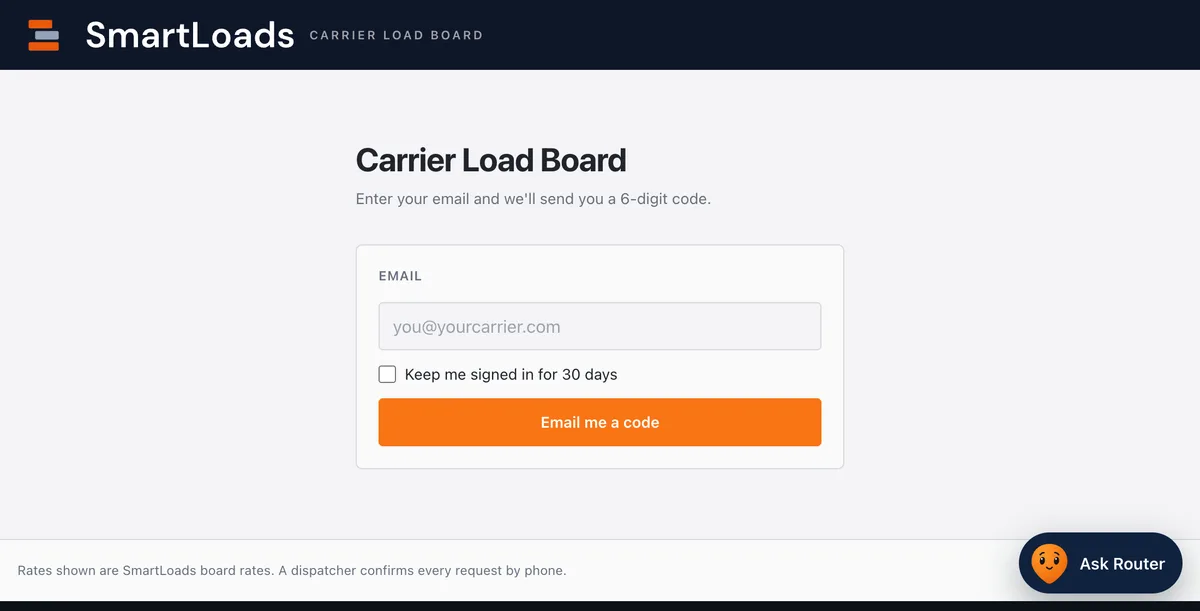
- They type the 6-digit code from the email and click Sign in. The code works for 10 minutes. If they ask for a new one, only the newest works.
- If the board doesn't have their full name and phone number yet, it asks for them, so your team knows who to call.
- Then it asks Tell us what lanes you run. They can save lanes or click Skip for now, show me the board.
Preferred lanes
A carrier can save up to 5 lanes. Loads on those lanes sort to the top of the board every time they open it.
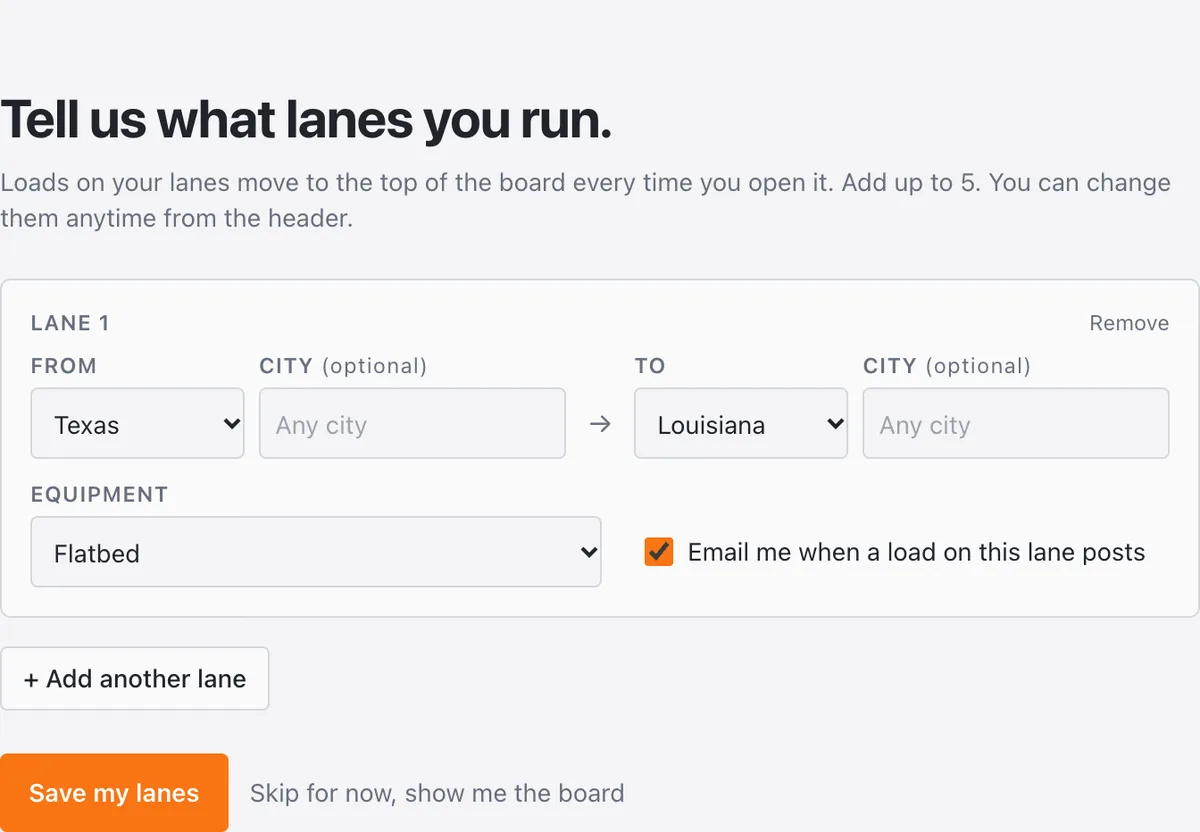
Each lane has:
- From: a state, and a city if they want one.
- To: a state and city, or Anywhere.
- Equipment: one type, or Any equipment.
- Email me when a load on this lane posts: the lane alert, below.
On the board, each saved lane is a filter next to All. A bell on a lane means its alerts are on. To change lanes later, the carrier clicks Edit lanes.
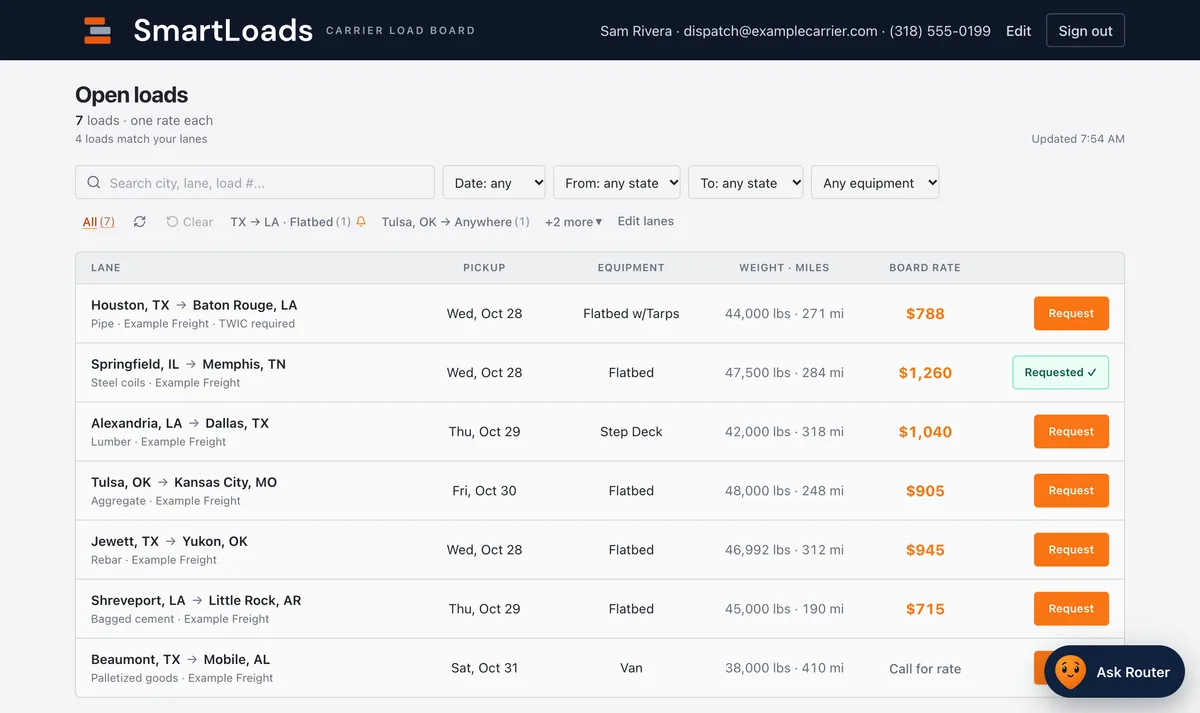
The board refreshes itself every 90 seconds. Carriers can also search a city or filter by date, origin state, destination state and equipment.
Requesting a load
- The carrier clicks Request on a load.
- They check their name and phone number, add a note if they like, and click Confirm request. Ticking Email me when this lane posts again saves that lane with alerts on.
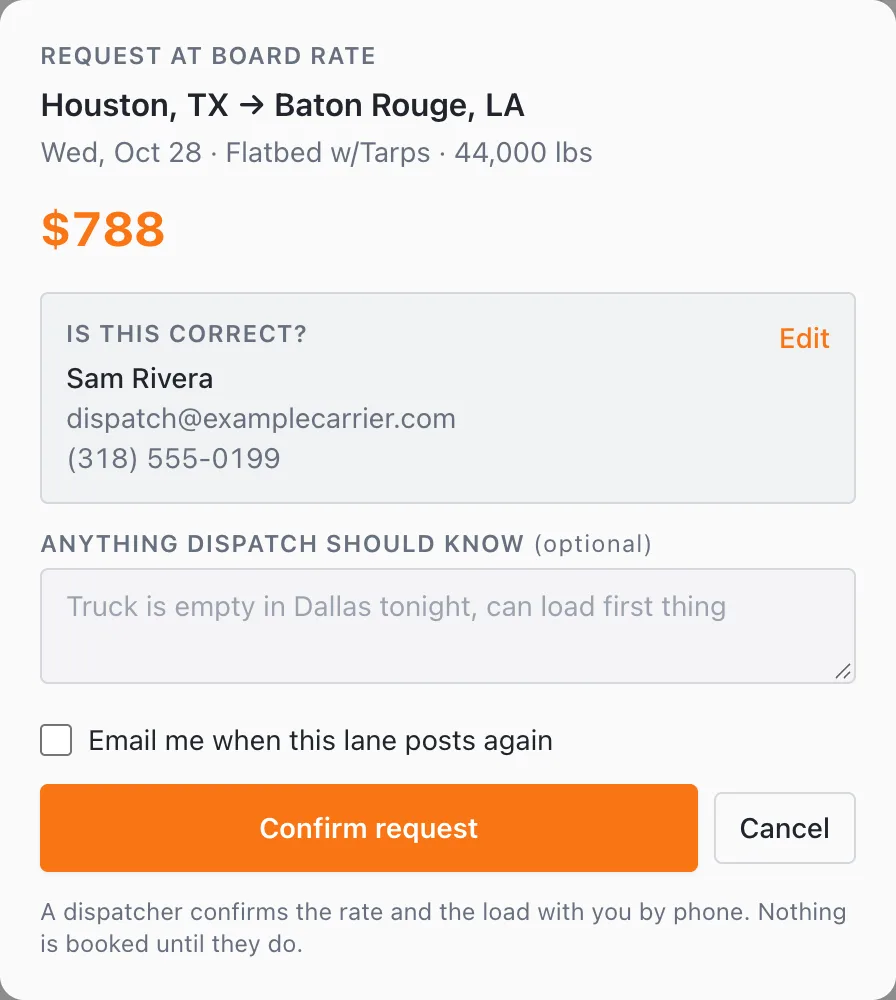
- The board says Request sent and the load shows Requested.
The request comes to your team as a lead labeled SmartLoad Board on the AI Leads tab of your Load Board, with the carrier's name, phone and note. Call the carrier, agree the load, then book it as usual (see Claim, book and cover a load).
Signed-in carriers can also click Ask Router. Router is SmartLoads' super intelligence (SI) helper. It answers questions about loads on the board and can open a load or its request window. It only states the rate the board shows, and it can't book a load or change a rate. A person confirms every load.
Lane alerts by email
When a load posts on a lane with alerts on, the carrier gets an email.
- One email a day at most, sent on weekdays between 7 AM and 5 PM Central.
- It lists the matching loads on that day's board, up to 20 rows (loads on the same lane, equipment and rate share one row), then says how many more are on the board.
- Each load has an I want this load button. It opens a page where the carrier clicks Yes, I want this load. That sends the same request as the board's Request button, without signing in. The link stops working when that day's board ends.
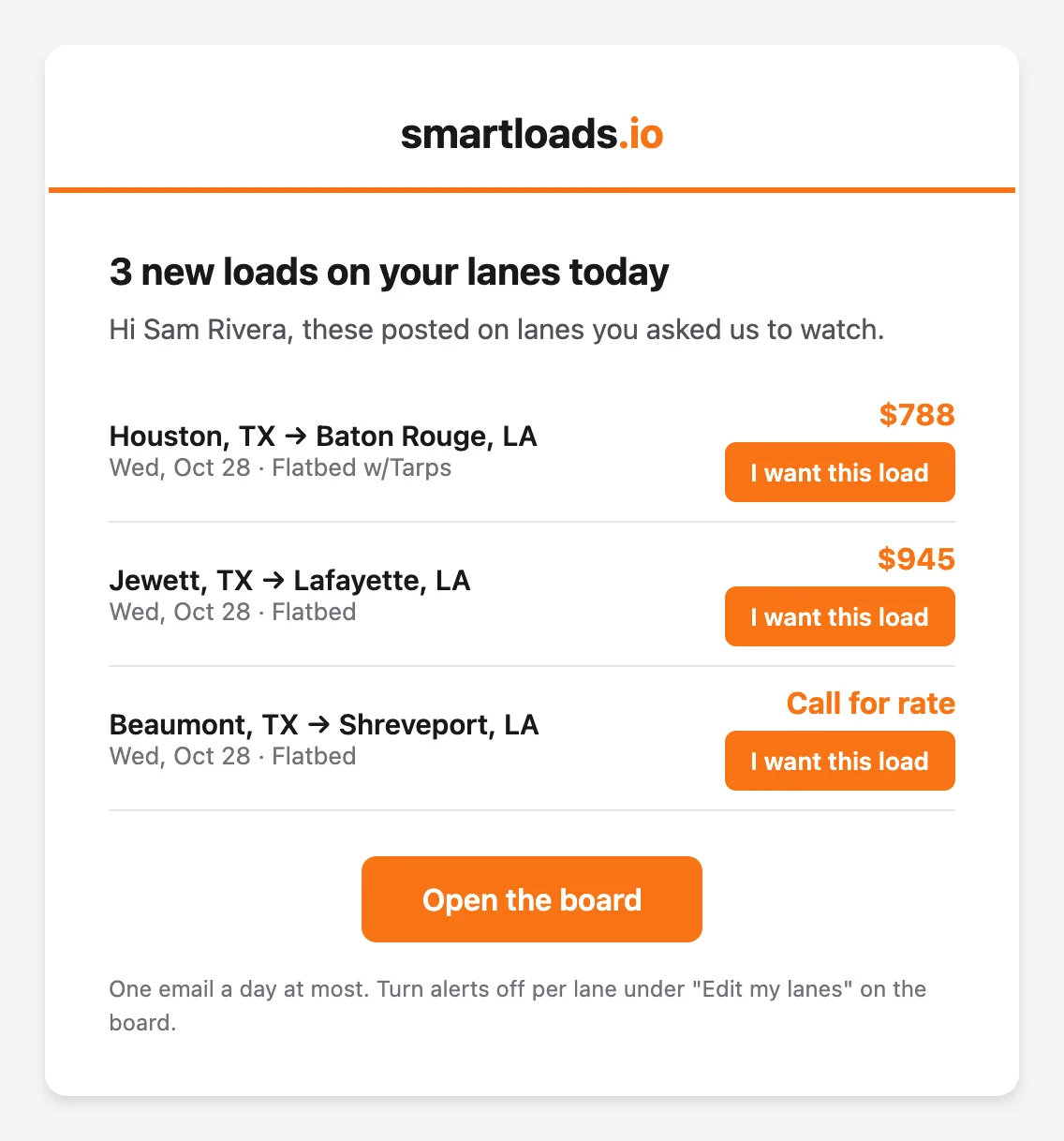
To stop alerts on a lane, the carrier clicks Edit lanes and unticks Email me when a load on this lane posts.
See who signed up
- In Admin → Board settings, click See who's signed up on the board at the bottom of the Carrier Load Board card.
- Load Board Signups lists every carrier with an account on your board, newest first.
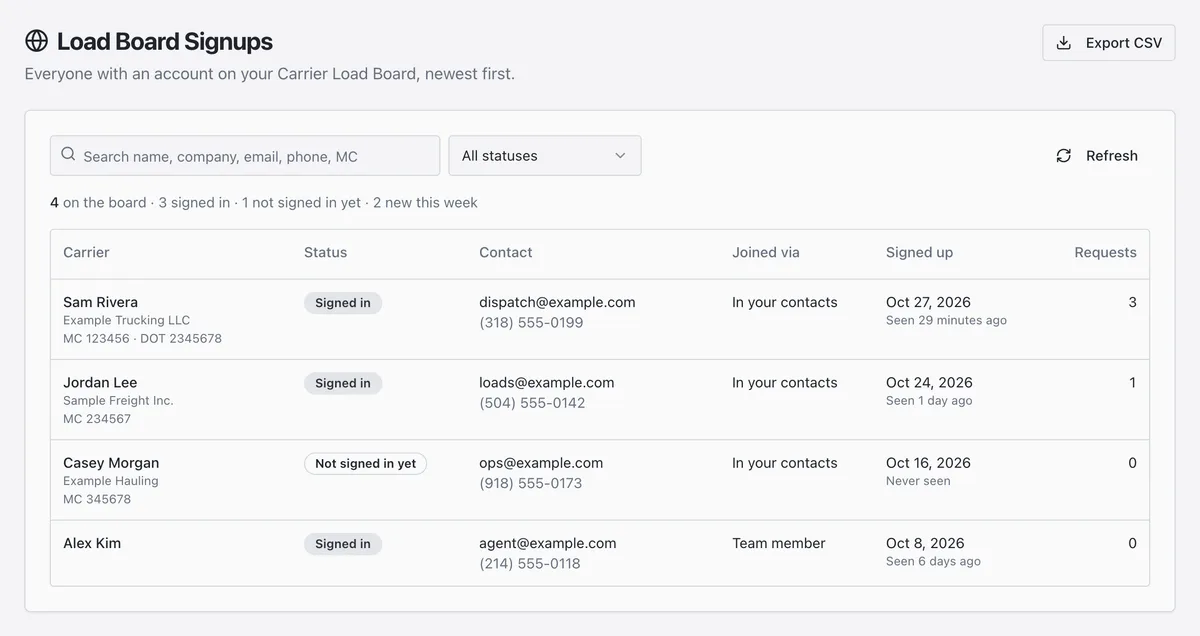
Each row shows the carrier's name, company and MC, whether they've signed in yet, their email and phone, how they joined (such as In your contacts or Team member), when they signed up and last visited, and how many loads they've requested. Search by name, company, email, phone or MC, filter by status, or click Export CSV. Only agency admins can open this page.
Frequently asked questions
Can any carrier sign up?
No. A carrier signs in only when their email is on file, such as in your CRM Contacts. Add them there first.
Do carriers see my customer or my invoice?
No. They see the lane, dates, equipment, weight, miles, commodity, your agency's name and, when you allow it, the board rate.
Why does a load say Call for rate?
Either Show rates is off on the card, or the load's customer doesn't have Show rate on load boards turned on.
Why isn't my load on the board?
Check that the switch on the Carrier Load Board card is on and the customer is ticked in Customers on the public board. Booked and covered loads come off, and so do loads held for rate review or location review. A load for a later board day lists from that day.
Does the board book loads?
No. A request is a lead. Someone on your team calls the carrier and books the load.