
Fill Aljex with the SmartLoads Chrome extension
Add SmartLoads Shipment Fill from the Chrome Web Store and pin it. In SmartLoads, click Copy to TMS. In Aljex's Add Shipment or PLS 3.0's Create Load, click the extension, then Fill from SmartLoads copy. Check every box and save it yourself. In Aljex, click the extension once more after Save to add the carrier and send the Pro # to SmartLoads.
The extension fills Aljex's Add Shipment, or PLS 3.0's Create Load, from SmartLoads' copy of a load. You check the form and save it. It only clicks Save for you in Aljex, and only when you tick that box.
It works in Google Chrome on a computer. The pictures below use example names and numbers. The ones marked as illustrations are drawings, so your screen looks a little different.
Install it (once on each computer)
- Open SmartLoads Shipment Fill in the Chrome Web Store. Add to Chrome on the SmartLoads Chrome extension card in Settings → Connectors opens the same page.
- Click Add to Chrome, then Add extension.
- Pin it: click the puzzle piece at the top right of Chrome, then the pin next to SmartLoads Shipment Fill.
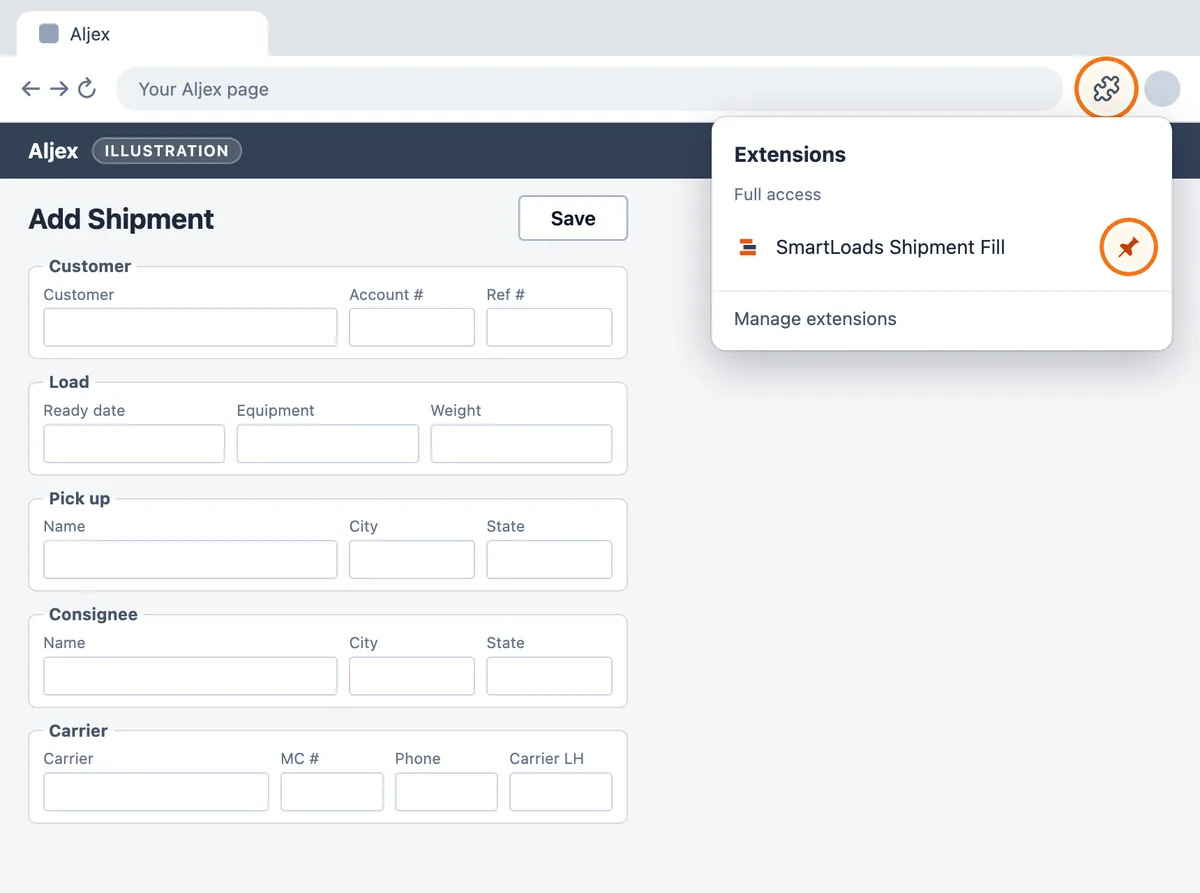
- If Aljex was already open, reload its tab once.
Chrome keeps it up to date. If your company's Chrome blocks the Chrome Web Store, see Install without the Chrome Web Store.
Fill a new shipment
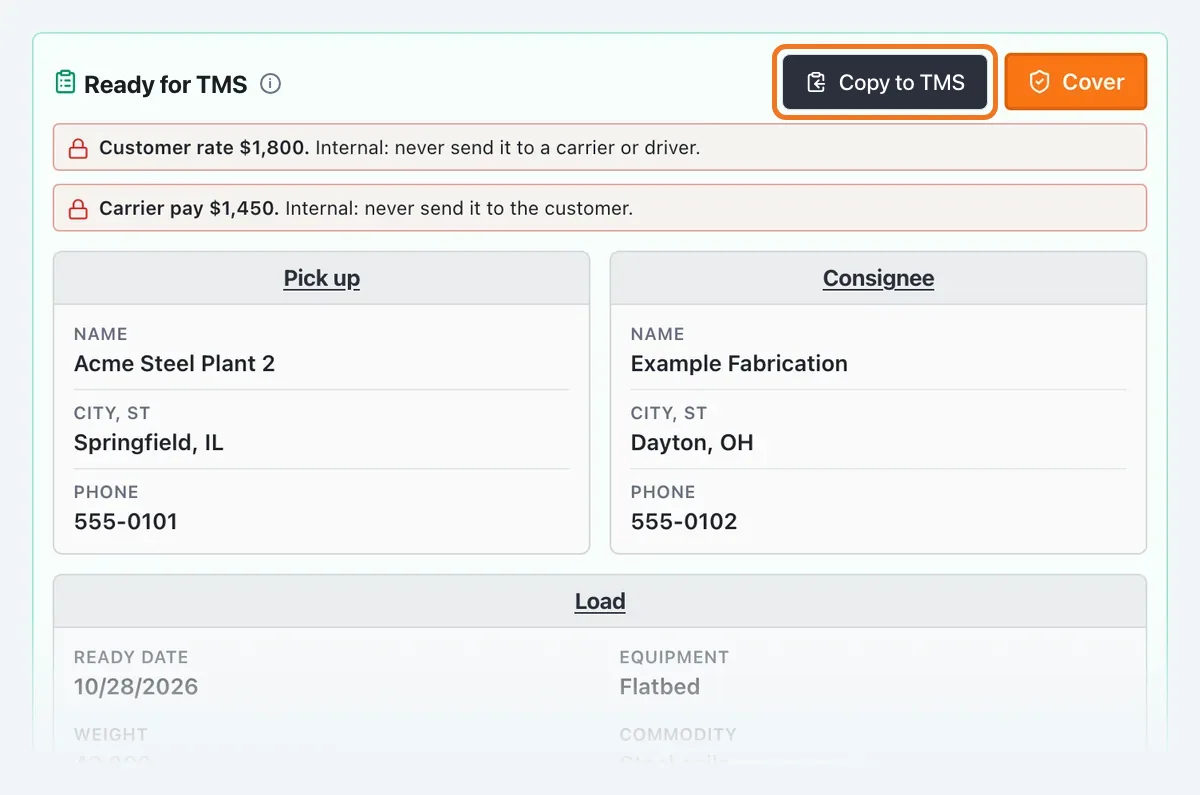
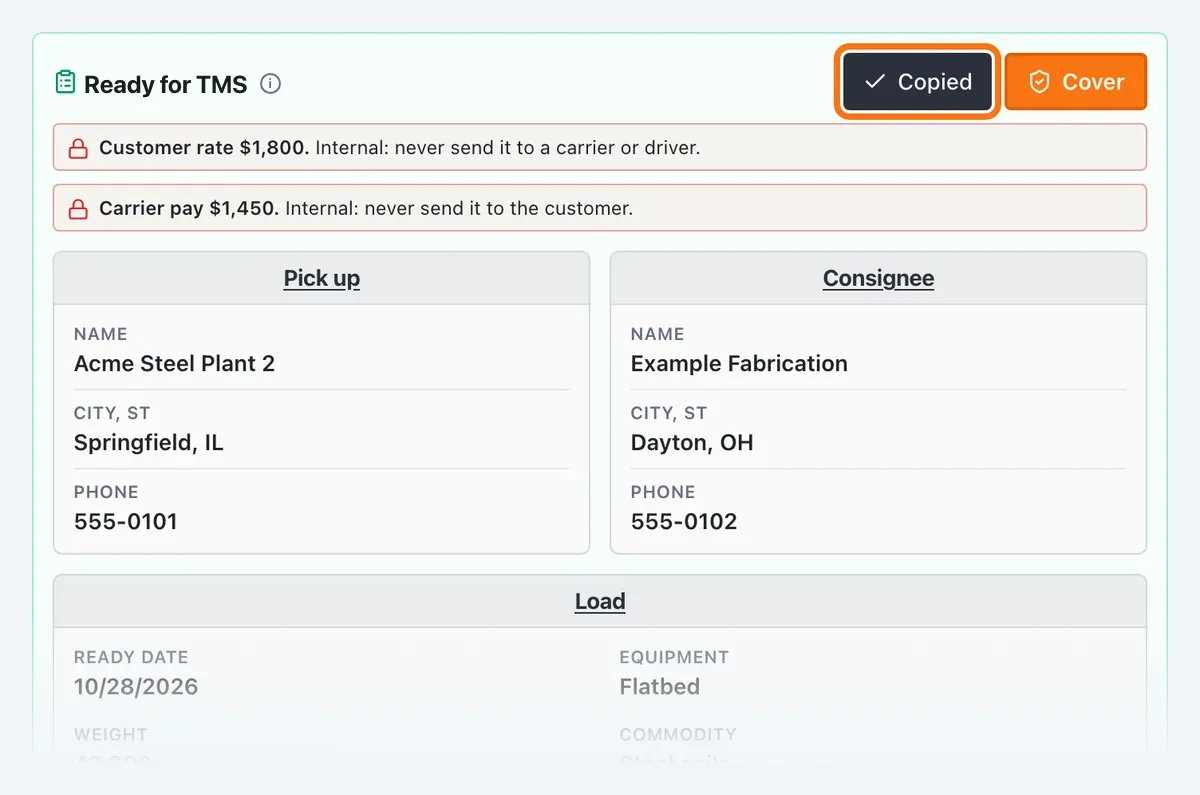
- In SmartLoads, click Copy to TMS. You'll find it on shipper paperwork in the Delivery tab, on a load's Shipper paperwork, and in the Outlook panel. If the load isn't booked yet, the same click books it for you: Booked for you. shows under the button.
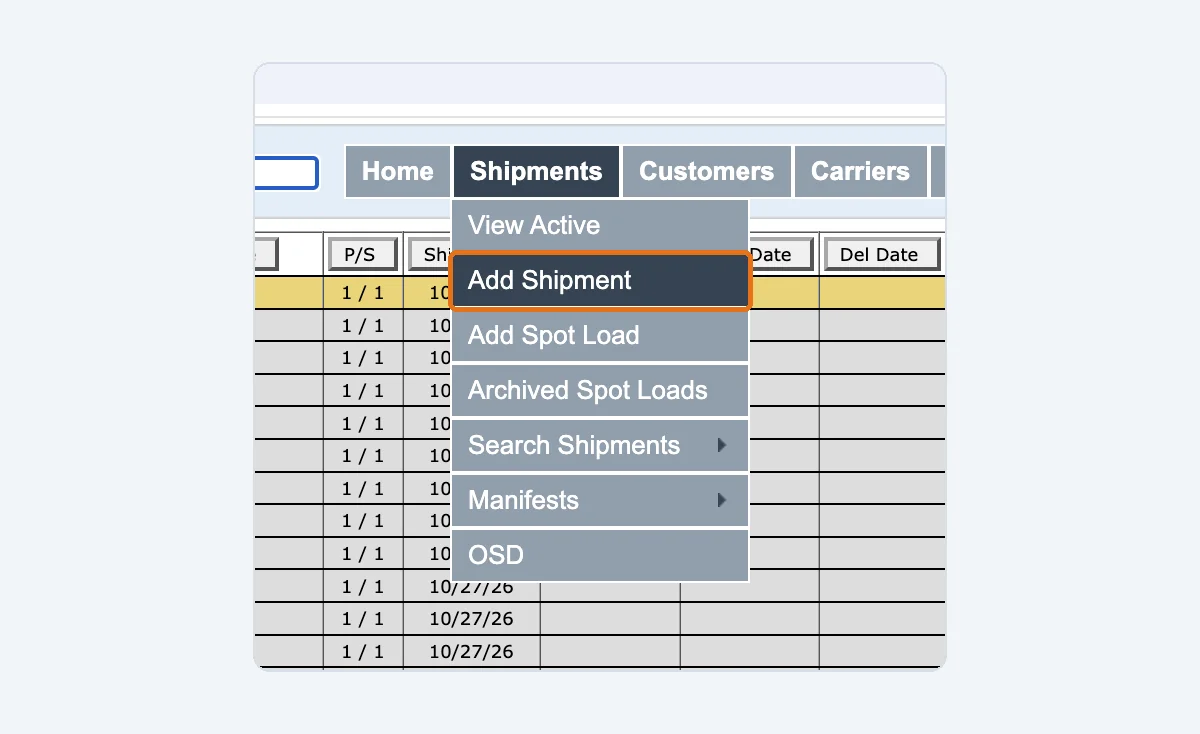
- In Aljex, go to Shipments, then Add Shipment. In PLS 3.0, go to Load, then Create Load.
- Click the SmartLoads icon at the top right of Chrome, then Fill from SmartLoads copy.
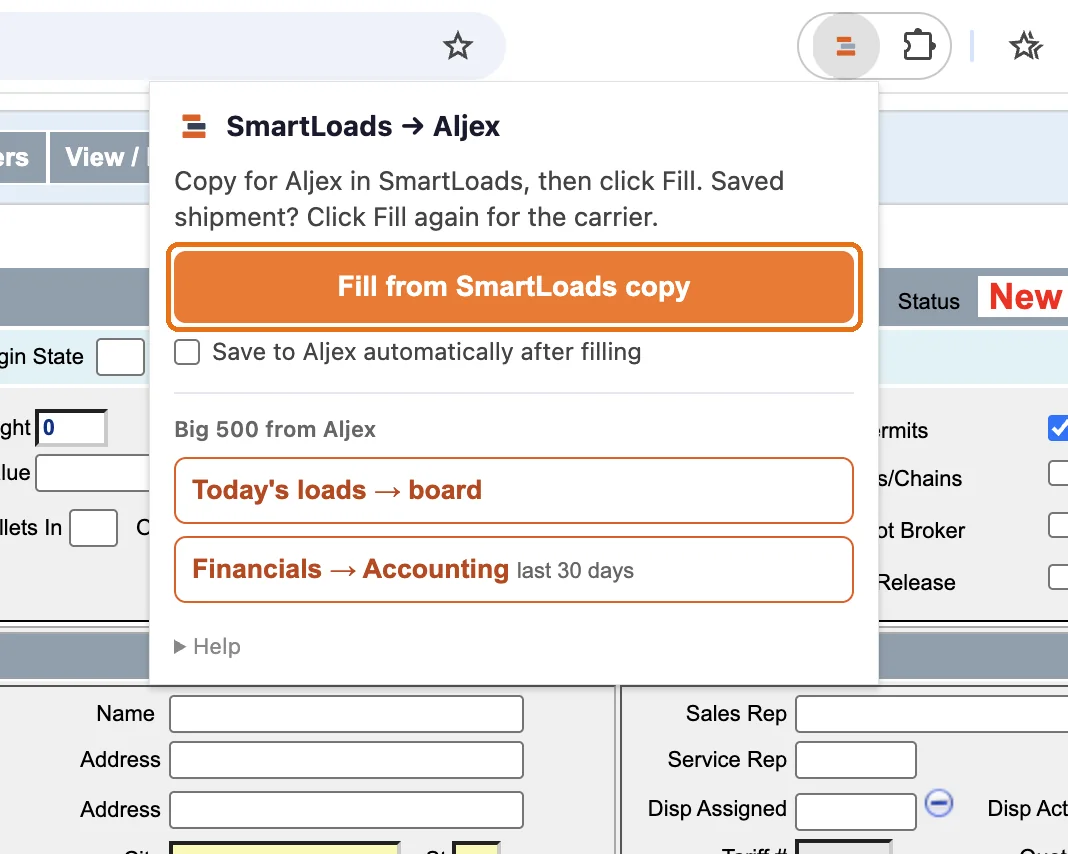
- In Aljex, wait for the fill to finish. A small yellow label by the Customer box says SmartLoads is filling… don't click yet, then what it's working on: the customer, pick up and delivery, then a check of the rates. Aljex takes a moment to fill in the customer's address, so leave the page alone until the label says filled. The extension's window shows the same steps.
- Check every box. Fix anything that's missing or wrong. The extension's window says what it filled and what to do next. If something is left for you, such as picking the customer in Aljex's list, the label turns red and says what.
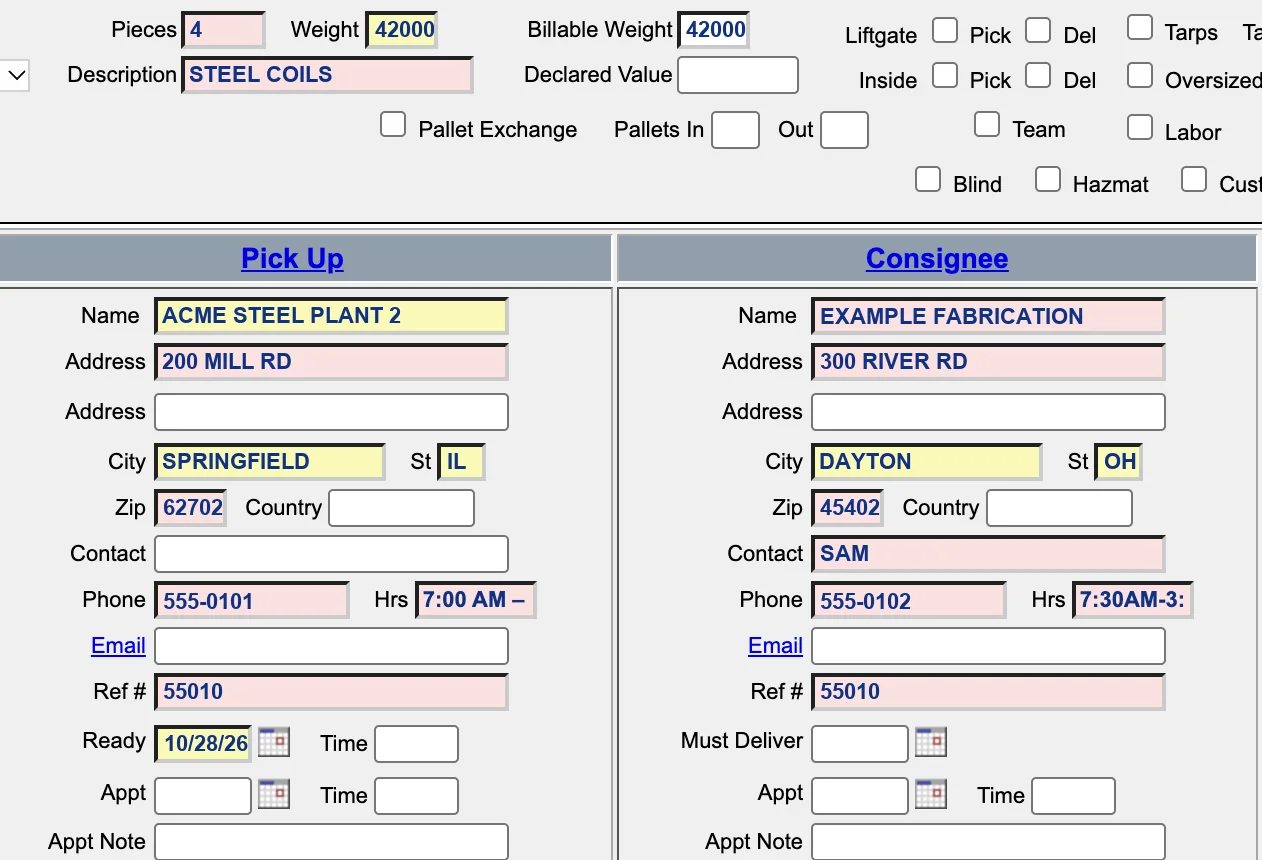
- Click Save in Aljex, or Create in PLS.
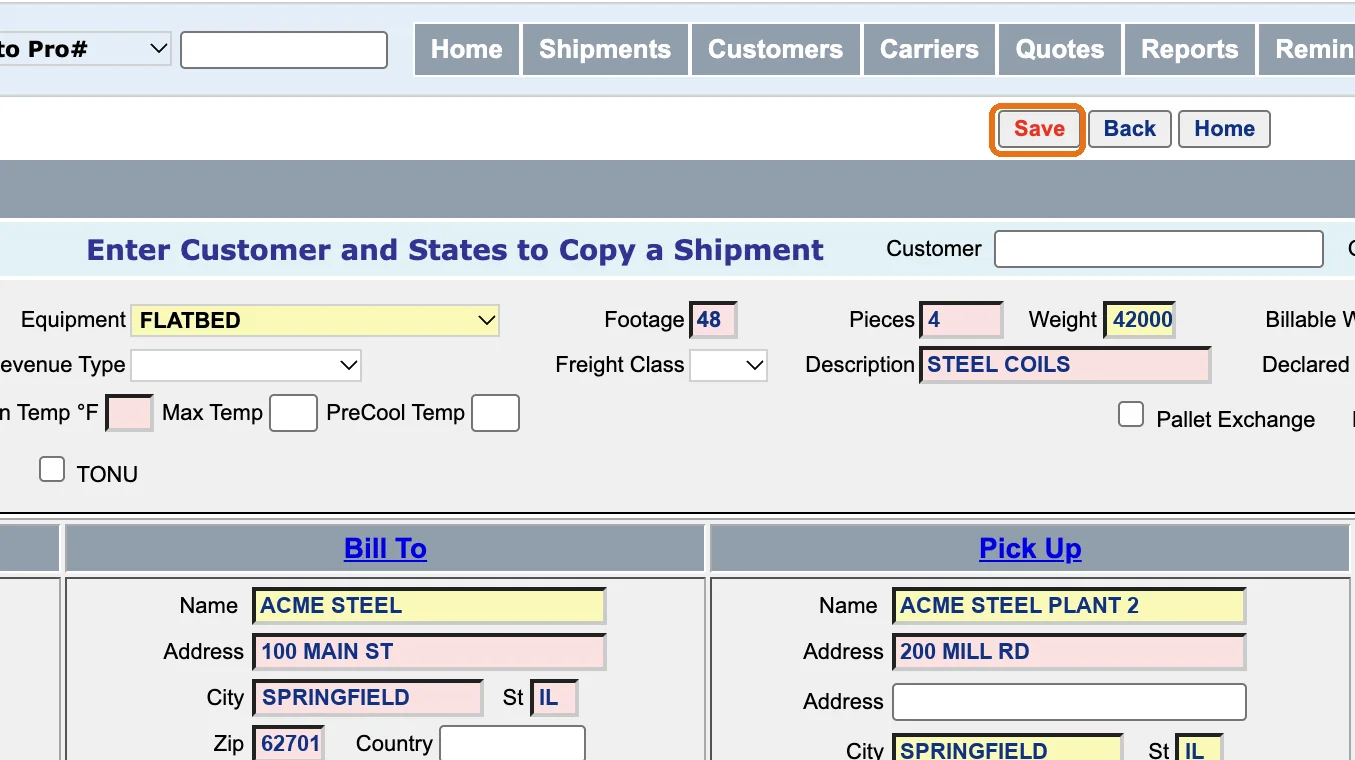
In PLS, a small SmartLoads box at the bottom right lists what's still to do, such as picking the customer. If you pick the customer yourself, click Fill from SmartLoads copy again: it keeps your pick and fills Location and Bill To. PLS needs version 0.4.0 or newer, so check the version on chrome://extensions. If your Chrome Web Store copy is older, use Install without the Chrome Web Store for now.
Have it click Save for you
Under the Fill button there's a box: Also press Save in Aljex for me. It presses Aljex's own Save button after filling, so you don't have to. It's off until you tick it, and it only works in Aljex. Older versions called it Click Aljex's Save for me when the fill is done or Save to Aljex automatically after filling. It's the same setting, so it stays the way you left it.
With it ticked, on a new shipment:
- The extension fills the boxes as usual, without the carrier, MC or carrier pay.
- It clicks Aljex's own Save.
- When Aljex shows the saved shipment, the extension sends the new Pro # to SmartLoads.
It doesn't save when Aljex's list didn't pick the customer, when a box Aljex needs is empty (customer account #, pick up and consignee city and state, ready date), or when Aljex shows a message during the fill. The extension's window says why, and you click Save yourself.
If SmartLoads already has a Pro # for the load, it says Already in Aljex as Pro #… and doesn't fill or save. Add the carrier on the saved shipment the same way as before.
Add the carrier and send the Pro # back
The first fill on a new shipment leaves out the carrier, MC and carrier pay. They go on once the shipment is saved.
The carrier comes from SmartLoads' copy, so the copy needs one. If you copied before the load was covered, cover it in SmartLoads, click Copy to TMS again, then Fill from SmartLoads copy.
- After you click Save, Aljex opens the saved shipment. A small box at the top right, right under the extension icon, says Hit the SmartLoads extension one more time to add the MC and carrier information.
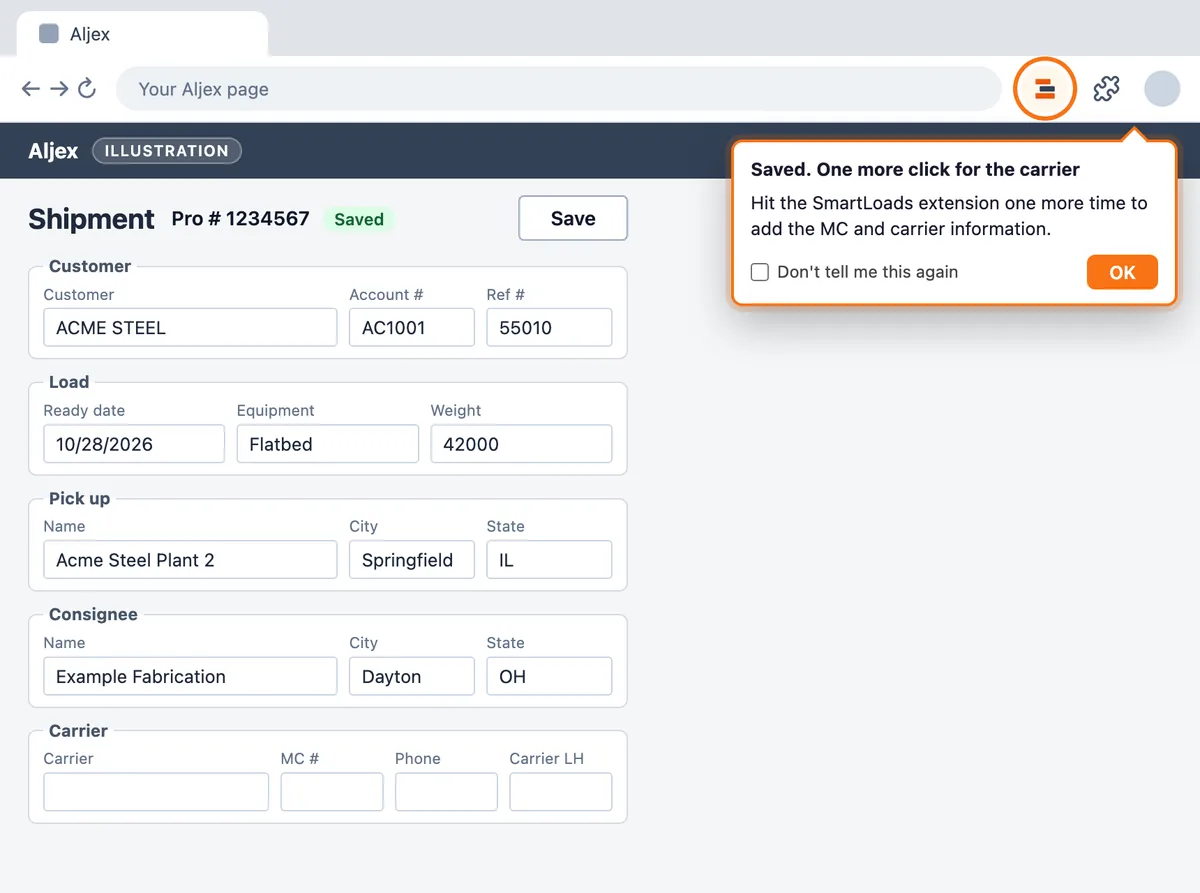
- Click the extension, then Fill from SmartLoads copy again. It fills the carrier, MC and carrier pay. If SmartLoads doesn't know the carrier yet, the extension says so.
- When the shipment's reference number matches the load, the extension sends the Aljex Pro # back to SmartLoads. Its window says Pro # … saved to SmartLoads.
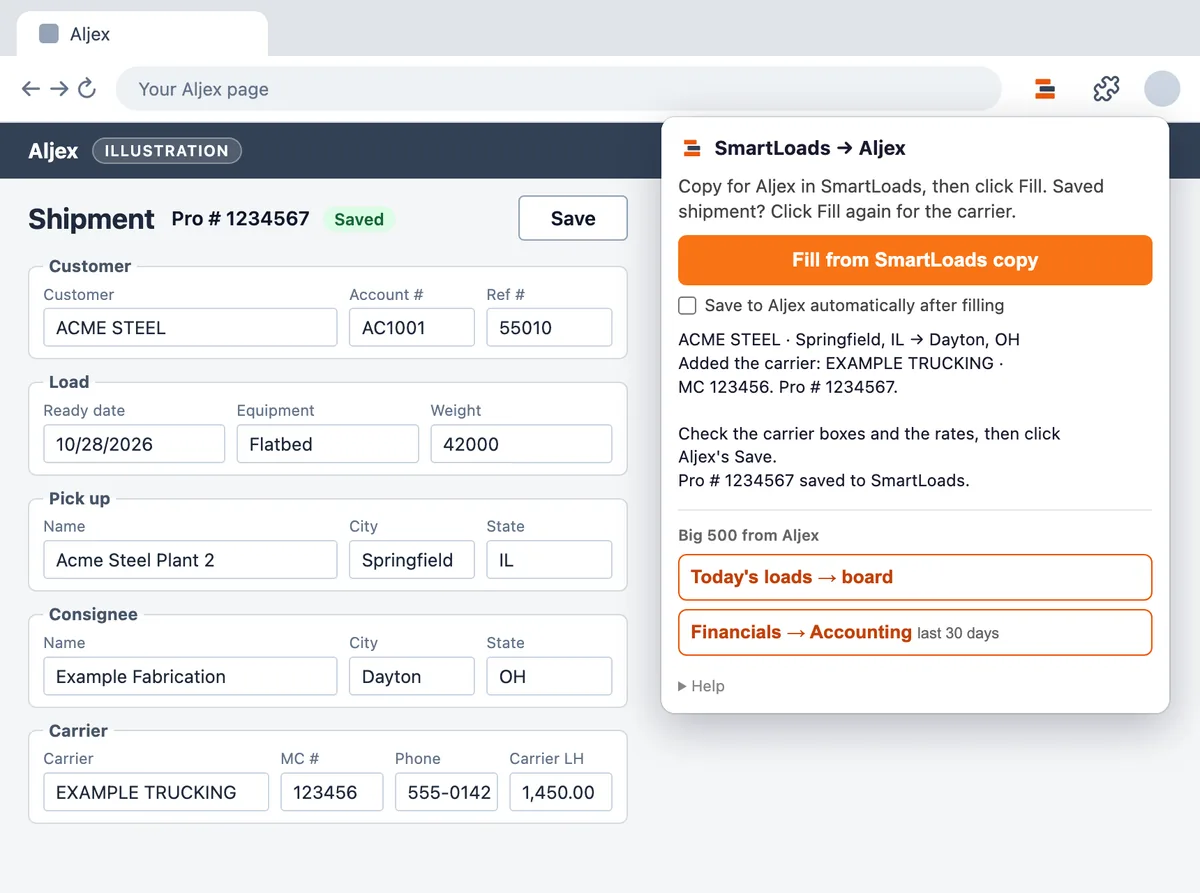
- Check the carrier boxes and the rates, then click Save.
The reminder needs version 0.6.1 or newer. Since 0.6.2 it sits at the top right, under the extension icon. It only shows when SmartLoads' copy has a carrier. To stop it, tick Don't tell me this again and click OK. To bring it back, open the extension, click Help, then Show it again.
See it in SmartLoads
Once you click Copy to TMS, the button reads Copied. Hover over it to see when it was copied. Click it again any time to copy again.
On the Delivery tab, a booked load you copied shows Copied to Aljex. When the Pro # comes back, it takes the place of the SmartLoads load number in the Load column.
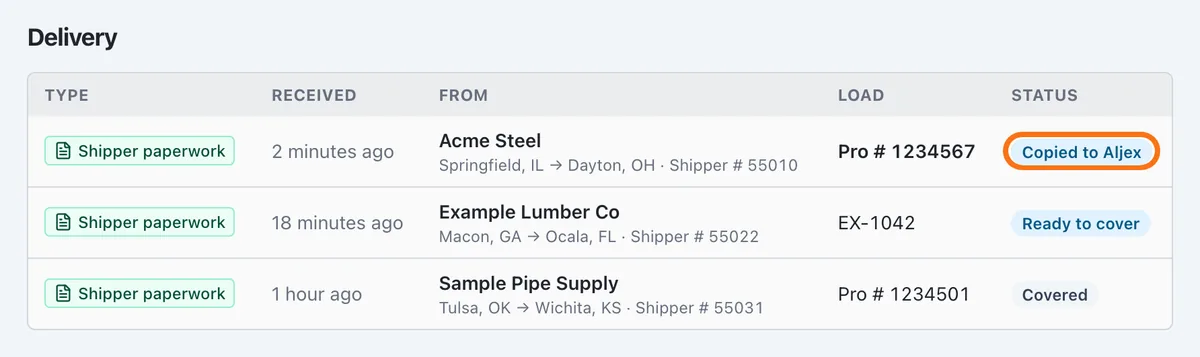
If your agency has the Aljex sync set up, SmartLoads usually marks the load covered once you cover it in Aljex, and brings the Pro # back. To cover it in SmartLoads yourself, click Cover.
What it never does
- It never clicks Create in PLS. It clicks Aljex's Save only when you tick Also press Save in Aljex for me.
- It never answers Aljex's OK or Cancel questions. You do.
- It doesn't fill the driver, truck, trailer, seal or SCAC boxes.
- On per-ton loads, the copy leaves the rates out. Type them yourself.
Aljex screens can differ from office to office. If a box doesn't fill, type it in before you click Save.
Install without the Chrome Web Store
Use this if your company's Chrome blocks the Chrome Web Store, or you need PLS before the store copy reaches 0.4.0. Use one or the other, not both.
- Download smartloads-aljex-fill.zip and unzip it. On a Mac, double-click it. On Windows, right-click it and choose Extract All.
- Move the
smartloads-aljex-fillfolder somewhere it can stay, such as Documents. Chrome runs the extension from that folder, so keep it. - In Chrome's address bar, type
chrome://extensionsand press Enter. - If a SmartLoads card is already there, click Remove on it.
- Turn on Developer mode at the top right.
- Click Load unpacked and pick the
smartloads-aljex-fillfolder. If Chrome says the manifest is missing, pick the folder of the same name inside it. - Check that the new card says version 0.8.1.
- Pin it as above, and reload any Aljex or PLS tabs you have open.
Reload on chrome://extensions only reads the same folder again. To update, download the new zip and repeat these steps.
If something goes wrong
- No SmartLoads icon: click the puzzle piece at the top right of Chrome, then the pin next to SmartLoads.
- It says it can't find the form, or nothing fills: reload the Aljex or PLS tab, open Add Shipment or Create Load again, and click the extension. Tabs that were open when you installed or updated it don't have it yet.
- The customer isn't picked: the extension types the customer's name, but Aljex wants it chosen from its own list. Click the customer in Aljex's pop-up list. The extension also lists anything else it couldn't fill, so you can type those in.
- Chrome won't let the extension read the copy: the extension shows a box instead. Click in the box and press Cmd+V (Ctrl+V on Windows).
- Wrong version: open
chrome://extensionsand check the version on the SmartLoads card. The Chrome Web Store version updates itself. For the download, get the new zip and follow the steps again. - Two SmartLoads icons: you have both versions. On
chrome://extensions, remove one. - Chrome won't add it: your company manages Chrome. Send your IT admin this page and ask them to allow SmartLoads Shipment Fill.
Frequently asked questions
Why does Chrome say it can read data I copy and paste?
That's Fill from SmartLoads copy reading the copy you made in SmartLoads. It reads it only when you click the button.
Why does Copy to TMS on a rate con give me plain text?
On a carrier rate con, Copy to TMS copies the details as text for you to type in by hand.
Does SmartLoads connect to Aljex?
The extension fills the form in your own browser, and you click Save. For agencies that set up the Aljex sync, SmartLoads also reads covered loads from Aljex to mark them covered and bring the Pro # back. It never changes anything in Aljex.