
Get set up: the Chrome extension and the Outlook panel
In short
Accept your SmartLoads invite and create your password. Add SmartLoads Shipment Fill to Chrome and pin it. Add the Outlook file under My add-ins → Add from File, then sign in to the SmartLoads panel on an email.
First: open your SmartLoads invite email, click Accept Invitation and create your password. The Outlook panel signs in with it.
The pictures are drawings, so your screen may differ a little.
Chrome
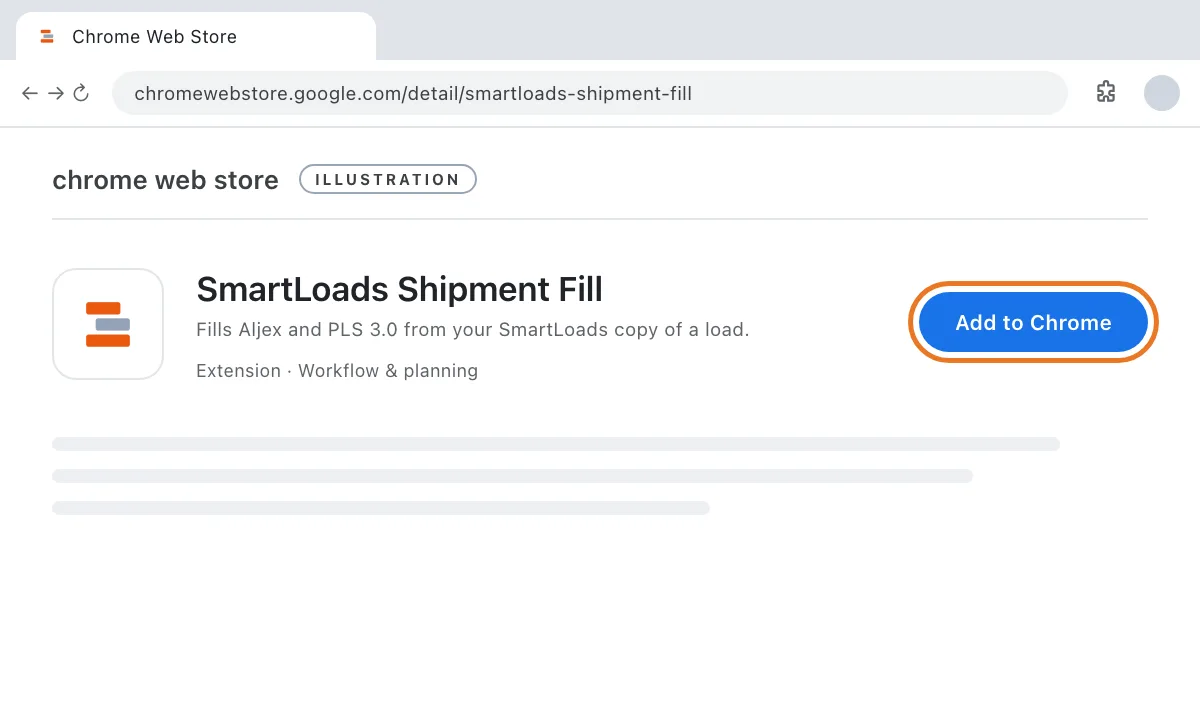
- Open SmartLoads Shipment Fill in the Chrome Web Store. Click Add to Chrome, then Add extension.
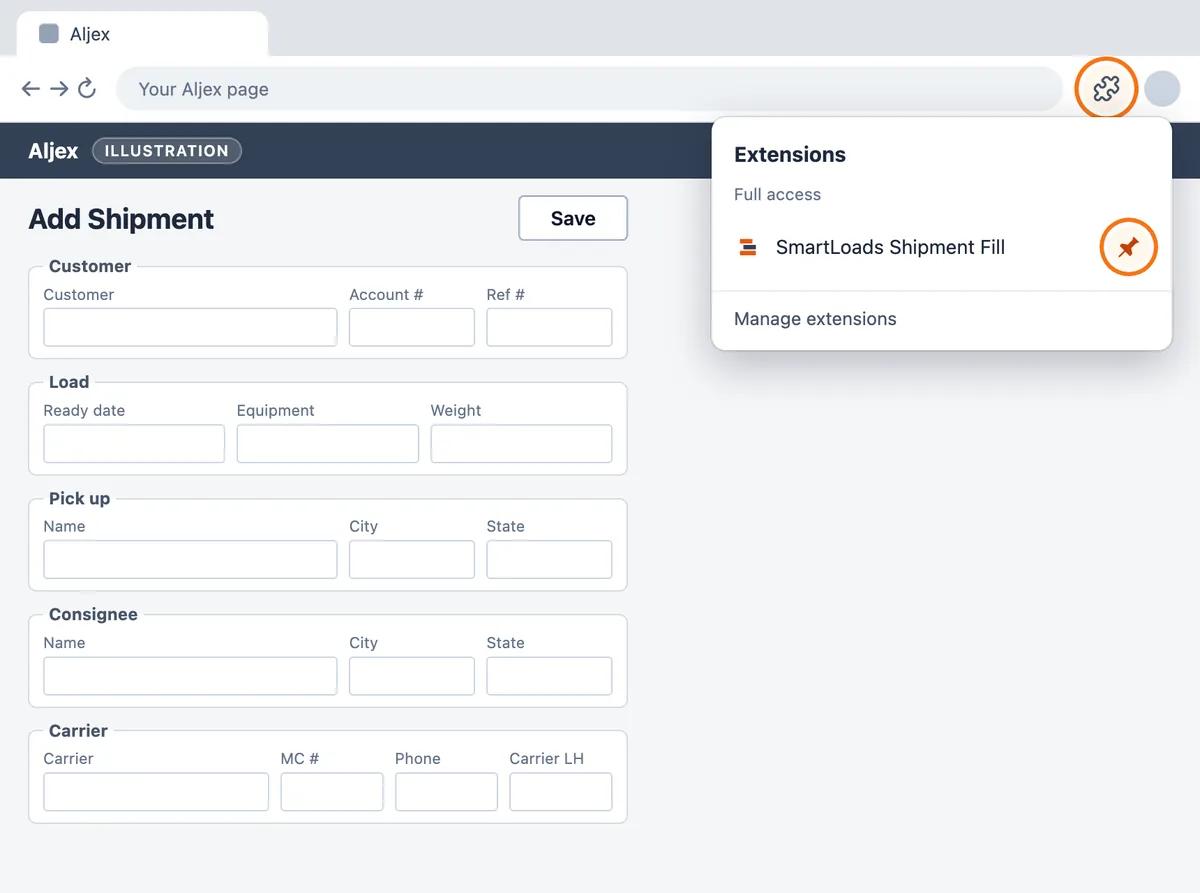
- Click the puzzle piece at the top right of Chrome, then the pin next to SmartLoads Shipment Fill. If Aljex is already open, reload it.
Outlook
- Click Download the Outlook file. It saves
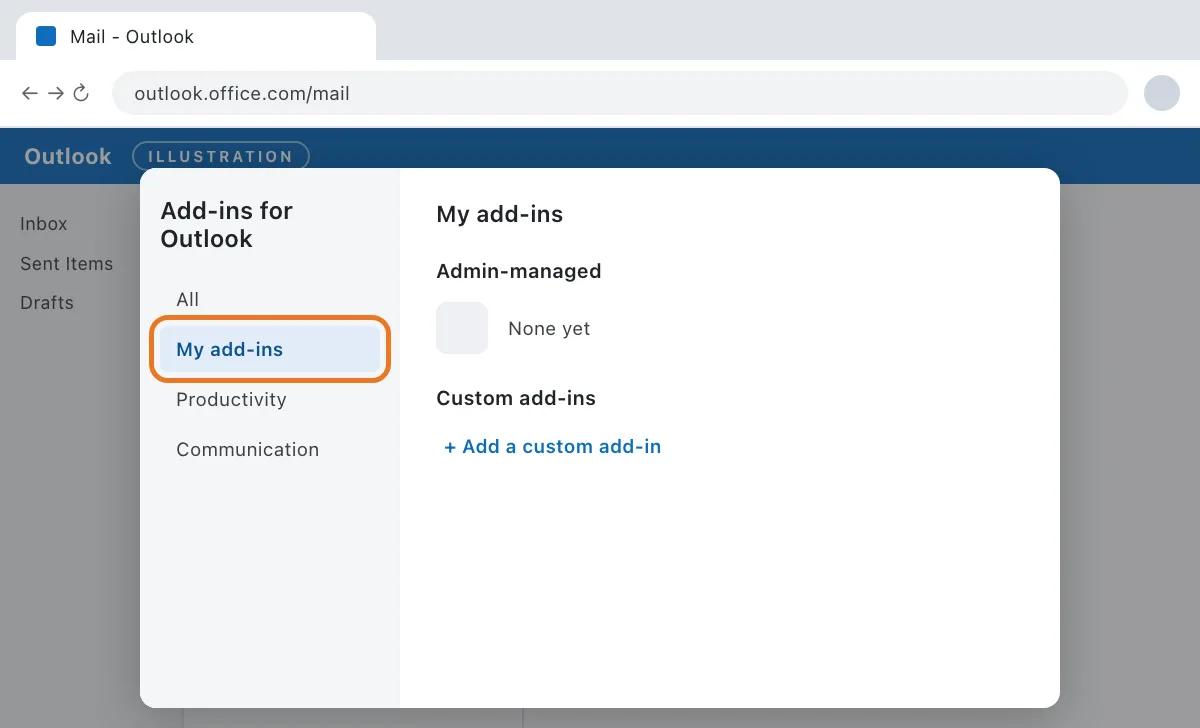
SmartLoads-Outlook.xml. Then go to aka.ms/olksideload in your browser. Sign in with your work email if it asks, then click My add-ins.
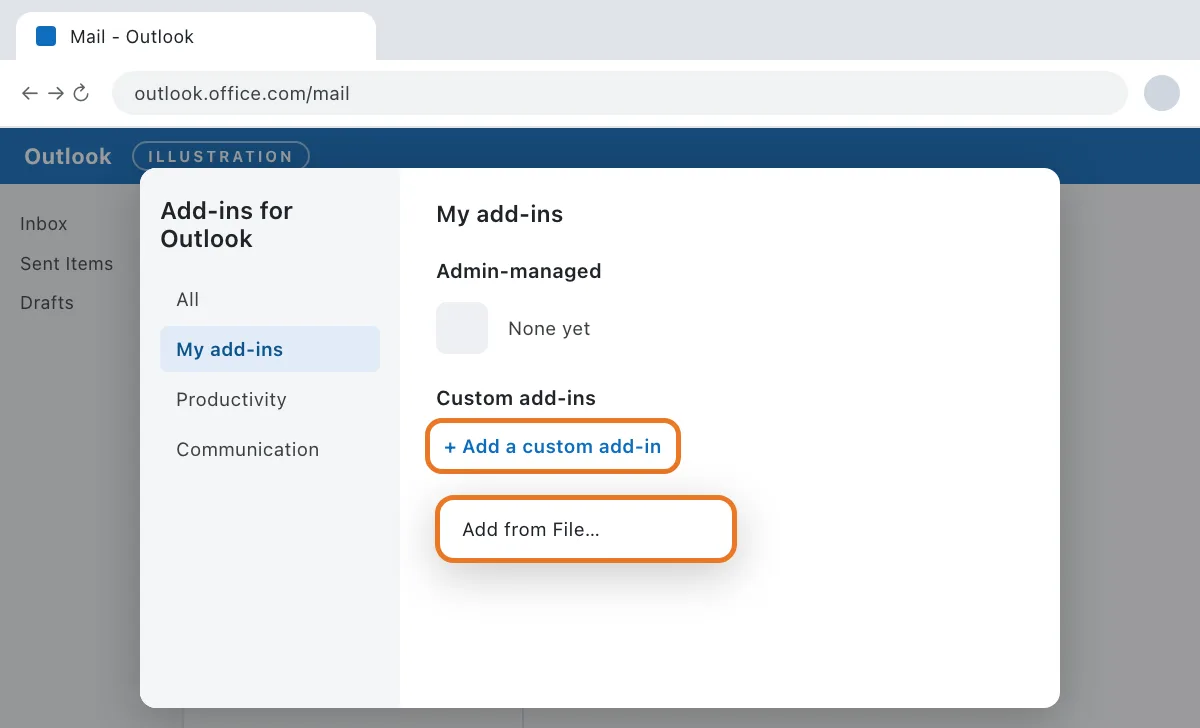
- Under Custom add-ins, click Add a custom add-in, then Add from File. Pick
SmartLoads-Outlook.xmland click Install.
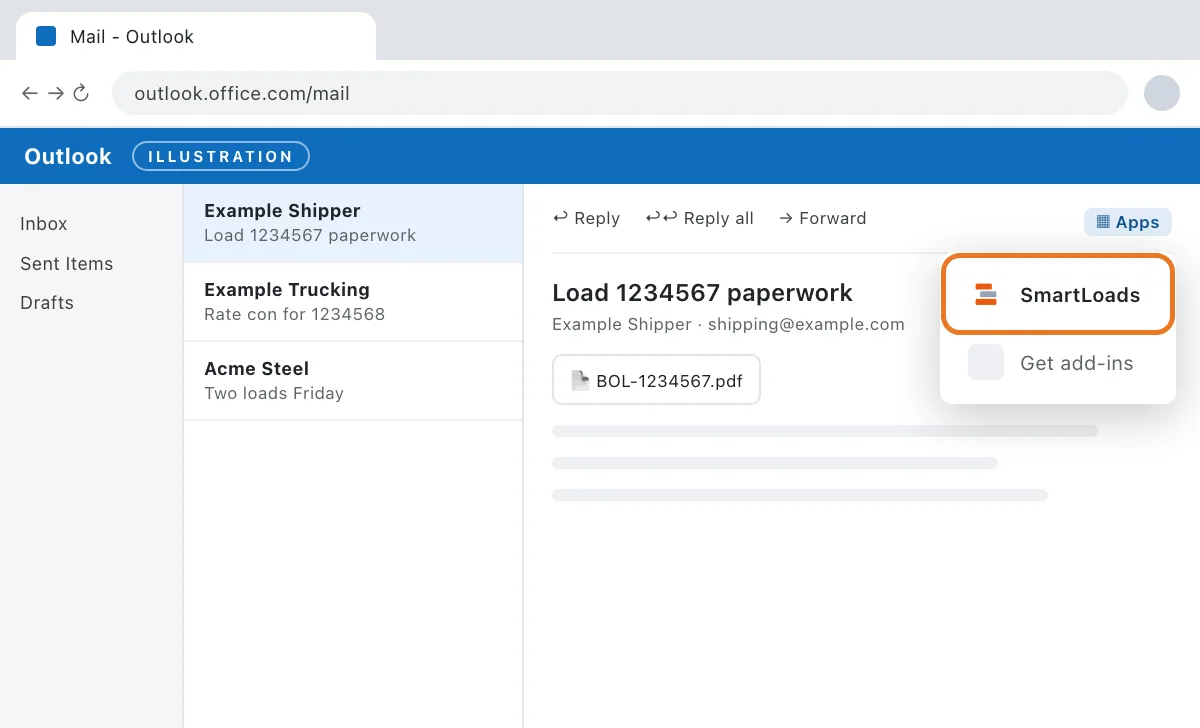
- Open a load email and click the SmartLoads icon (under Apps or …). Sign in with your SmartLoads email and password. It shows right away in Outlook on the web; the classic Outlook app can take up to a day.
How to use it
- In the Outlook panel, click Read this email, then Copy to TMS. Copy to TMS books the load for you if it isn't booked yet.
- In Aljex's Add Shipment, click the SmartLoads icon, then Fill from SmartLoads copy. Check every box and click Save.
- Once the load is covered, click Copy to TMS again, then Fill from SmartLoads copy to add the carrier.
Stuck? See Install the SmartLoads panel in Outlook and Fill Aljex with the SmartLoads Chrome extension.